> For the complete documentation index, see [llms.txt](https://deploykey.gitbook.io/deploykey-docs/llms.txt). Markdown versions of documentation pages are available by appending `.md` to page URLs; this page is available as [Markdown](https://deploykey.gitbook.io/deploykey-docs/microsoft-office-2024/office-professional-plus-2024.md).

# Office Professional Plus 2024

{% stepper %}
{% step %}

### Install

Please install from the provided link

{% hint style="info" %}
If you weren't given a custom link, please click [here](https://deploykey.com/downloads/Office2024ProPlus/MS_Office_ProPlus2024_Installer.exe) to install.
{% endhint %}
{% endstep %}

{% step %}

### Run the Installer

Double click the exe file.

<figure><img src="https://1978368718-files.gitbook.io/~/files/v0/b/gitbook-x-prod.appspot.com/o/spaces%2FFNnogF2Fci1hUNfRkRRb%2Fuploads%2FchV3eTFdjVjSojknkKxF%2Fimage.png?alt=media&amp;token=c65ed187-287e-405d-8d48-1bbd6dcbd1d3" alt=""><figcaption></figcaption></figure>
{% endstep %}

{% step %}

### Choose Language

Choose your preferred language and then click "Next".

<figure><img src="https://1978368718-files.gitbook.io/~/files/v0/b/gitbook-x-prod.appspot.com/o/spaces%2FFNnogF2Fci1hUNfRkRRb%2Fuploads%2FcMtEt0yDOewJex3uLxRp%2Fimage.png?alt=media&amp;token=0f1fe825-4b57-45cd-8499-be90c2bb5ff7" alt=""><figcaption></figcaption></figure>
{% endstep %}

{% step %}

### Choose Architecture

Choose your system architecture (32 or 64 bit) and then click "Next". If you don't know your system architecture, [ask ChatGPT](https://chat.openai.com/?q=is%20my%20system%20architecture%2032%20or%2064%20bit?%20please%20ask%20for%20my%20computer%27s%20model%20number.). *Most systems are 64-bit.*

<figure><img src="https://1978368718-files.gitbook.io/~/files/v0/b/gitbook-x-prod.appspot.com/o/spaces%2FFNnogF2Fci1hUNfRkRRb%2Fuploads%2FC6h8LLE0s0Fr01YM8o1y%2Fimage.png?alt=media&amp;token=27711524-695d-4c76-87c3-7ddb3106df1a" alt=""><figcaption></figcaption></figure>
{% endstep %}

{% step %}

### Begin Office Installation

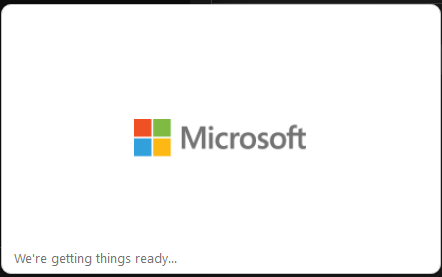
You will see this:

<figure><img src="https://1978368718-files.gitbook.io/~/files/v0/b/gitbook-x-prod.appspot.com/o/spaces%2FFNnogF2Fci1hUNfRkRRb%2Fuploads%2FS9YAtNnvLfwc7ynpjtgB%2Fimage.png?alt=media&amp;token=9fdf99c6-e57a-4632-ad87-1458f1ccbb5a" alt=""><figcaption></figcaption></figure>

{% hint style="info" %}
If you see an error message similar to this, don't worry, just close it and start it again.

![](https://1978368718-files.gitbook.io/~/files/v0/b/gitbook-x-prod.appspot.com/o/spaces%2FFNnogF2Fci1hUNfRkRRb%2Fuploads%2Fv4BDNmftyU4fYtqHetW9%2Fimage.png?alt=media\&token=bdf889f1-42ba-4e1c-9406-3b4a4fde8943)
{% endhint %}
{% endstep %}

{% step %}

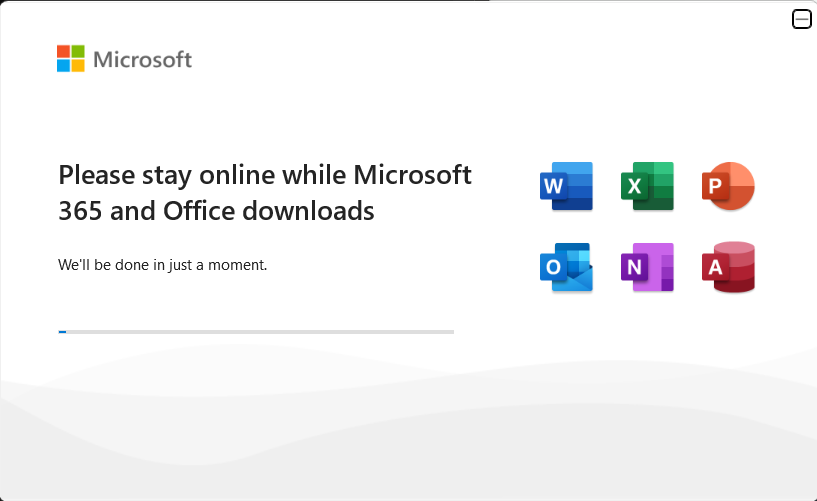
### Installing

Once you see this, sit back and relax.

<figure><img src="https://1978368718-files.gitbook.io/~/files/v0/b/gitbook-x-prod.appspot.com/o/spaces%2FFNnogF2Fci1hUNfRkRRb%2Fuploads%2FisePdamgSOapPUwY8ZM8%2Fimage.png?alt=media&amp;token=fa8043a8-70ef-4ef6-ad8d-72c8257aa2e6" alt=""><figcaption></figcaption></figure>
{% endstep %}

{% step %}

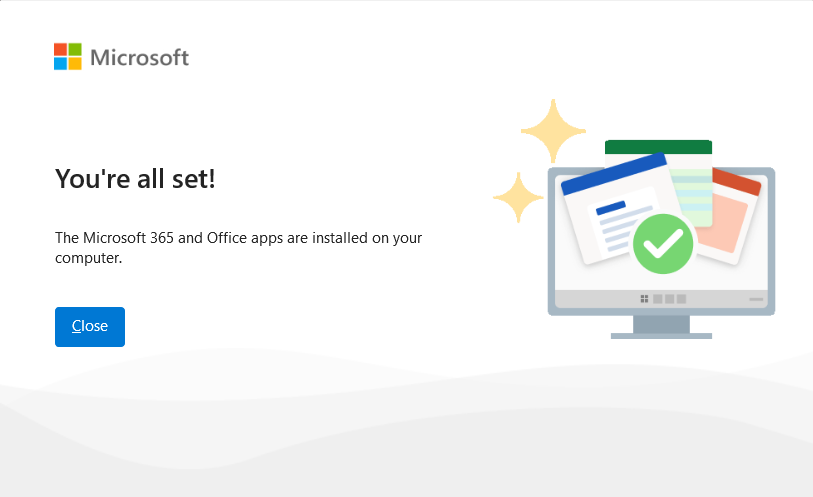
### Installation Complete

Once you see this, you're free to click "Close".

<figure><img src="https://1978368718-files.gitbook.io/~/files/v0/b/gitbook-x-prod.appspot.com/o/spaces%2FFNnogF2Fci1hUNfRkRRb%2Fuploads%2FGZZJ8Dpu47czPV2X5hIs%2Fimage.png?alt=media&amp;token=f6bfab61-13f4-476b-8f72-38f49520026b" alt=""><figcaption></figcaption></figure>

{% endstep %}

{% step %}

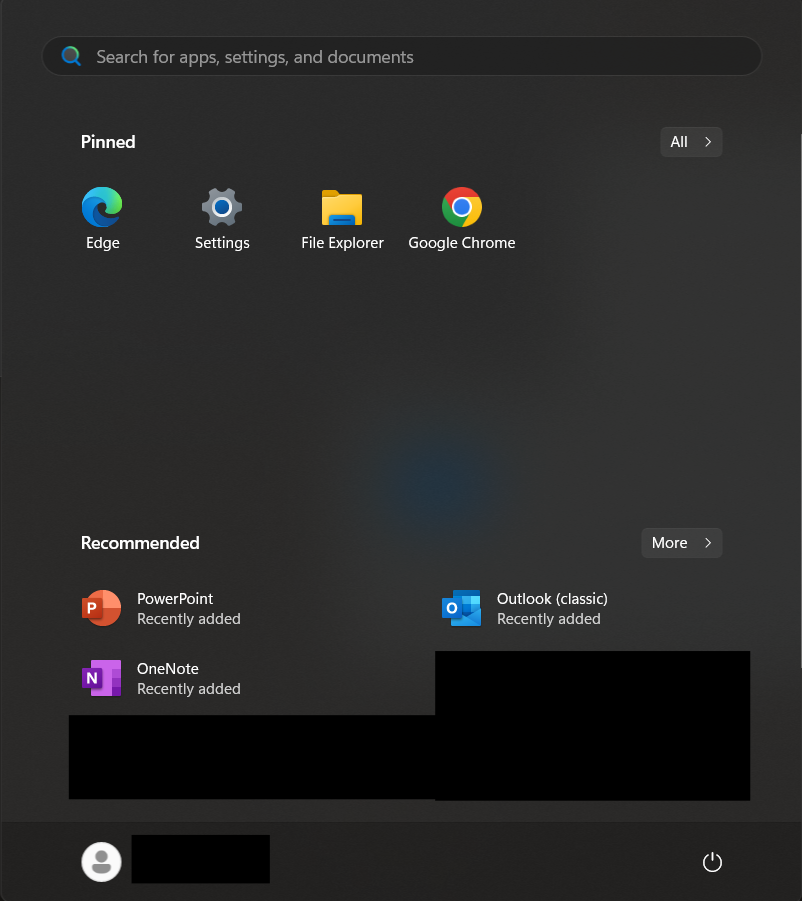
### See apps

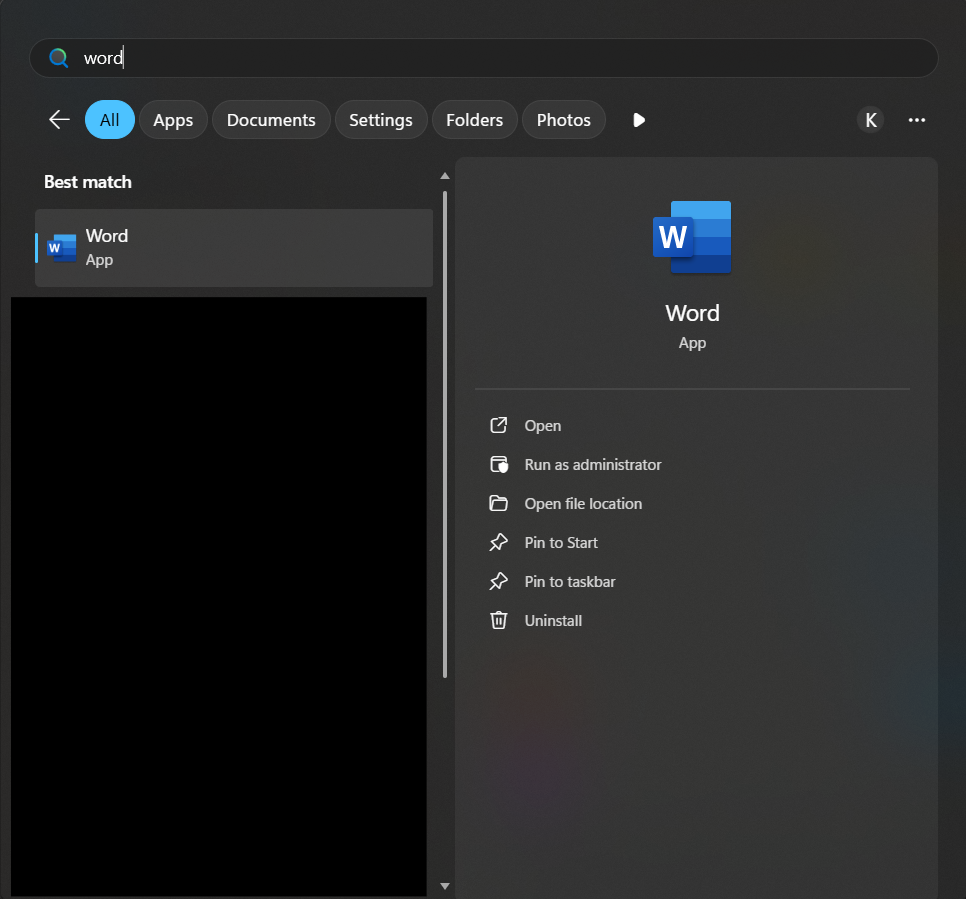
You will see a couple of the apps in your recommended when you click your Windows start/search

<figure><img src="https://1978368718-files.gitbook.io/~/files/v0/b/gitbook-x-prod.appspot.com/o/spaces%2FFNnogF2Fci1hUNfRkRRb%2Fuploads%2FsfvMQA5RE9PO8ppw9uw1%2Fimage.png?alt=media&amp;token=3b377d57-0320-417f-8aab-7b6d235e31bf" alt=""><figcaption></figcaption></figure>
{% endstep %}

{% step %}

### Open your favorite Office App

<figure><img src="https://1978368718-files.gitbook.io/~/files/v0/b/gitbook-x-prod.appspot.com/o/spaces%2FFNnogF2Fci1hUNfRkRRb%2Fuploads%2FI9Hsujkhrqh9n7LsRzyR%2Fimage.png?alt=media&amp;token=9353b317-26af-425a-b4da-b7dff9e0ecc3" alt=""><figcaption></figcaption></figure>
{% endstep %}

{% step %}

### Activate

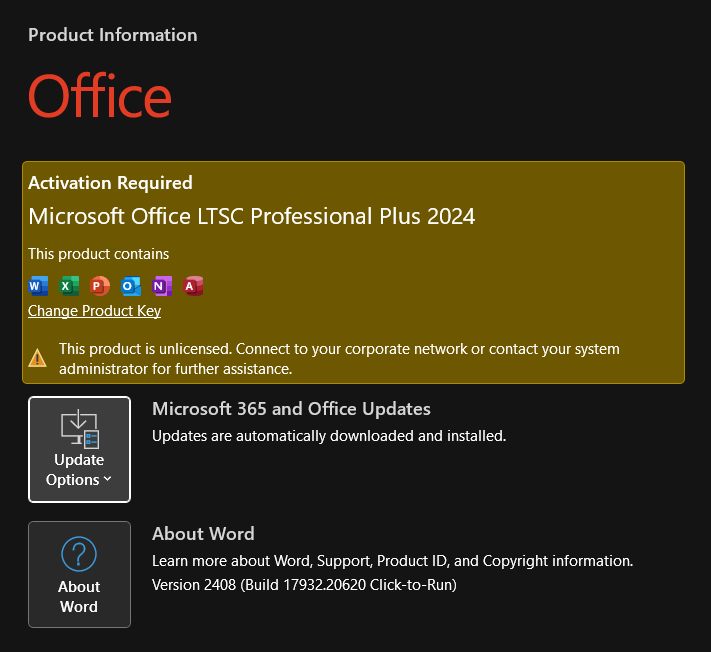
If you see this popup, click "Change Product Key" and enter your activation key. If you don't see this popup, please go to the next step.

<figure><img src="https://1978368718-files.gitbook.io/~/files/v0/b/gitbook-x-prod.appspot.com/o/spaces%2FFNnogF2Fci1hUNfRkRRb%2Fuploads%2Fq8J212gtXP5H0DBeWT7D%2Fimage.png?alt=media&amp;token=5a4d4351-8c4c-47dc-887a-4bb43671f9bc" alt=""><figcaption></figcaption></figure>
{% endstep %}

{% step %}

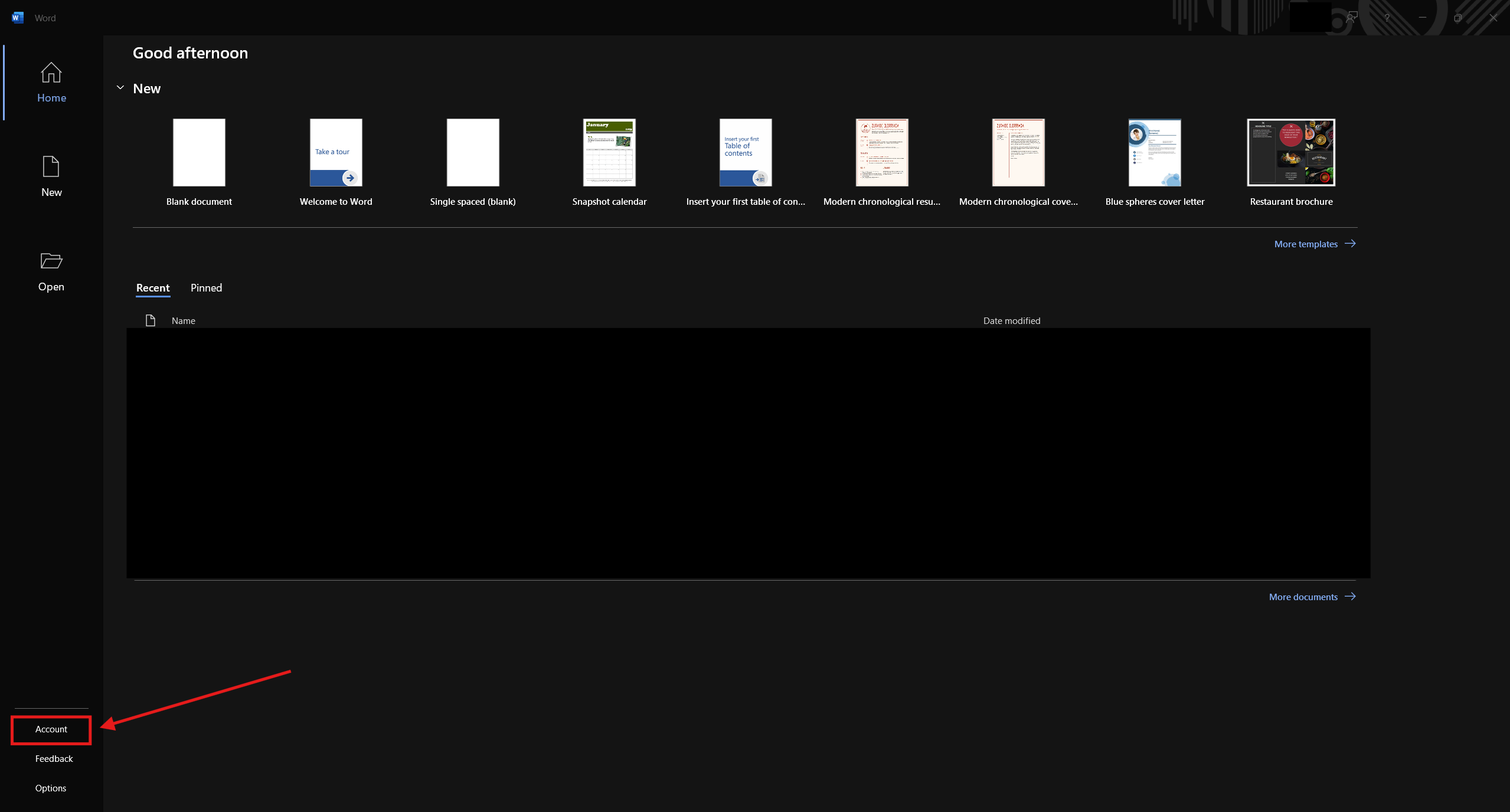
### Click "Account" in the left sidebar

<figure><img src="https://1978368718-files.gitbook.io/~/files/v0/b/gitbook-x-prod.appspot.com/o/spaces%2FFNnogF2Fci1hUNfRkRRb%2Fuploads%2Fzw4MULlXqV5sZYnggDXi%2Fimage.png?alt=media&amp;token=61b57204-0c8c-4f89-b0fb-a82e01977d36" alt=""><figcaption></figcaption></figure>
{% endstep %}

{% step %}

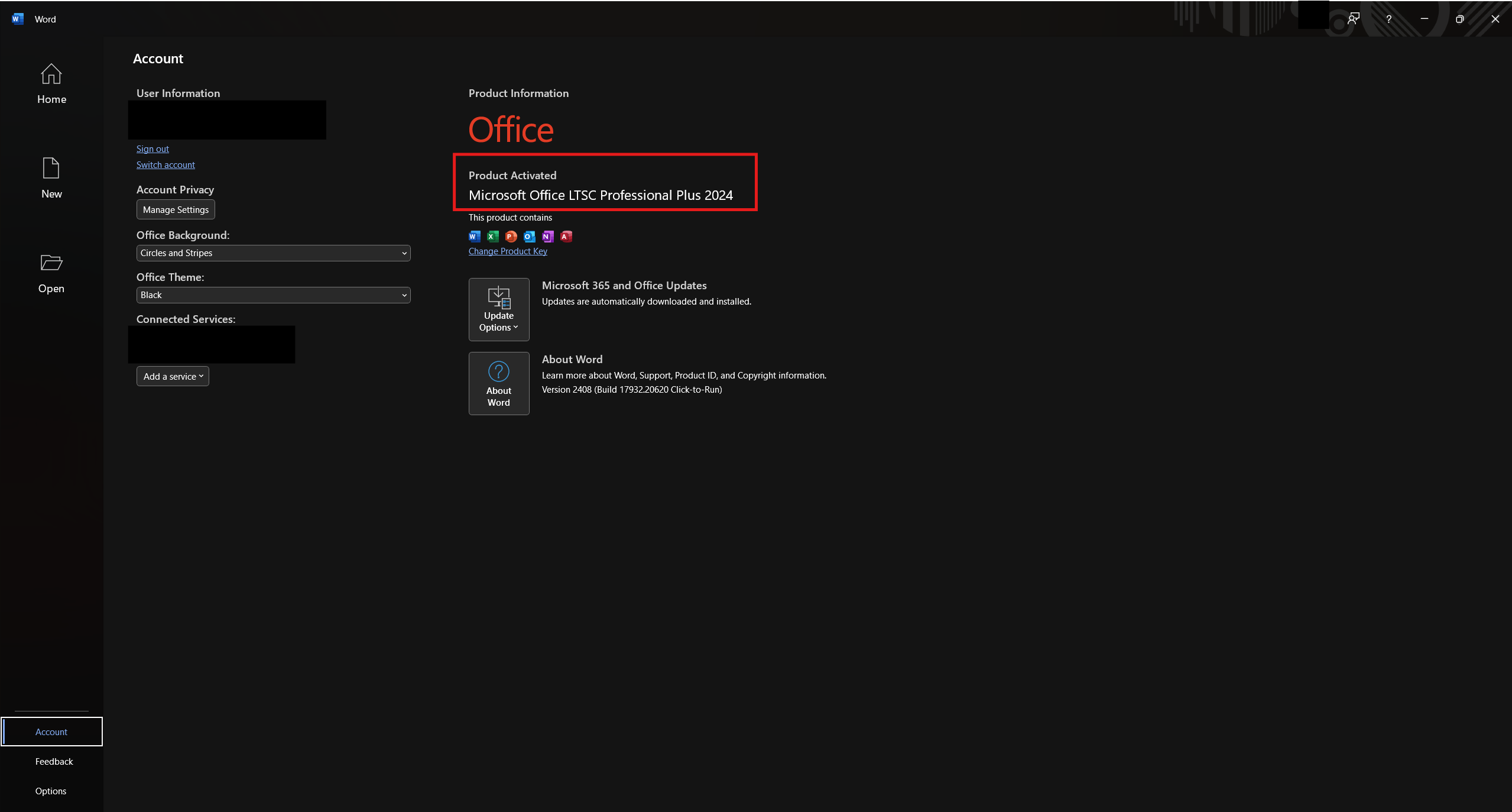
### Activation

You should see "Product Activated" but if you don't, please follow the steps below to activate.

<figure><img src="https://1978368718-files.gitbook.io/~/files/v0/b/gitbook-x-prod.appspot.com/o/spaces%2FFNnogF2Fci1hUNfRkRRb%2Fuploads%2FGaobuaYLIPcW4jLtmuiy%2Fimage.png?alt=media&amp;token=268c039e-d8c5-4a38-aa15-2f2cb4275135" alt=""><figcaption></figcaption></figure>

If you see this instead:

<figure><img src="https://1978368718-files.gitbook.io/~/files/v0/b/gitbook-x-prod.appspot.com/o/spaces%2FFNnogF2Fci1hUNfRkRRb%2Fuploads%2Fh5PpwZkRBCyvZUWhaj8g%2Fimage.png?alt=media&amp;token=26082eb4-72ac-47cc-91cf-5d497a4a9d43" alt=""><figcaption></figcaption></figure>

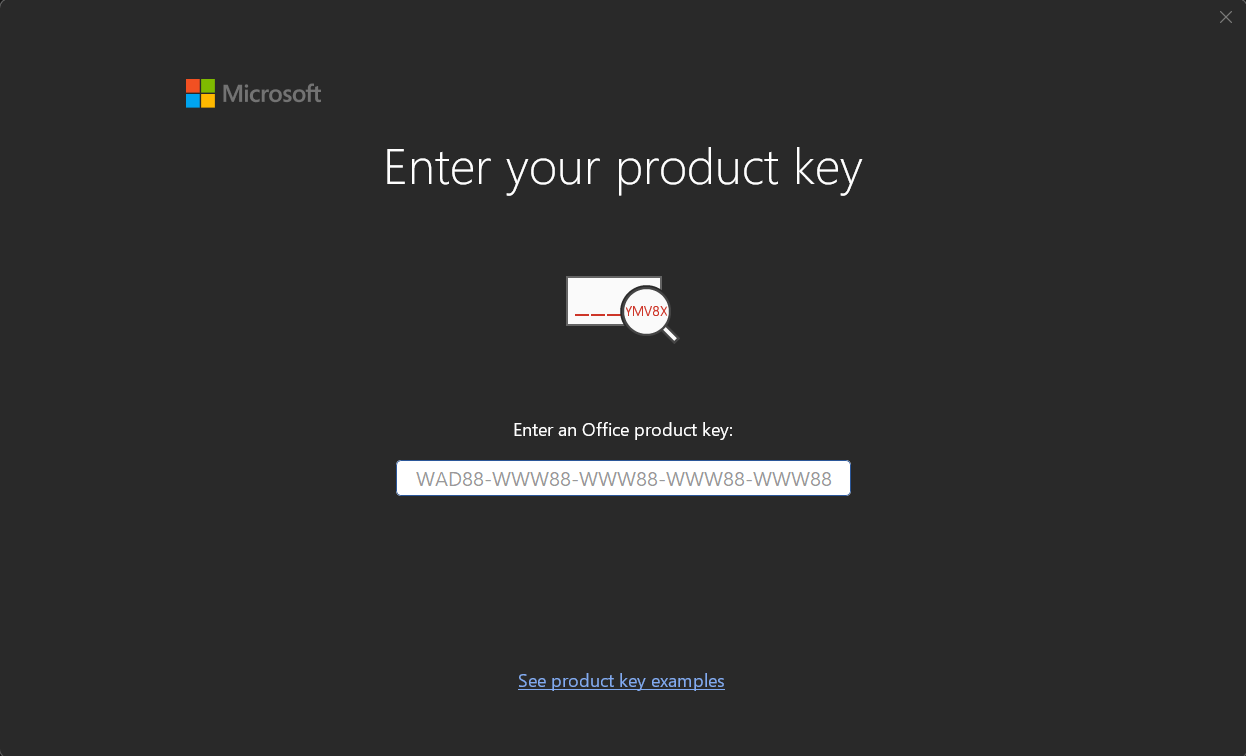
Click on "Change Product Key" and enter your key:

<figure><img src="https://1978368718-files.gitbook.io/~/files/v0/b/gitbook-x-prod.appspot.com/o/spaces%2FFNnogF2Fci1hUNfRkRRb%2Fuploads%2F3rPK2n1Pwwlhi6xR3ktu%2Fimage.png?alt=media&amp;token=c5c46f04-2398-43d2-8879-1591818c4748" alt=""><figcaption></figcaption></figure>

If it doesn't immediately say Activated, close the Office App (ex. Word) and open it again and then check.
{% endstep %}
{% endstepper %}